

Overview of the Portal Dashboard
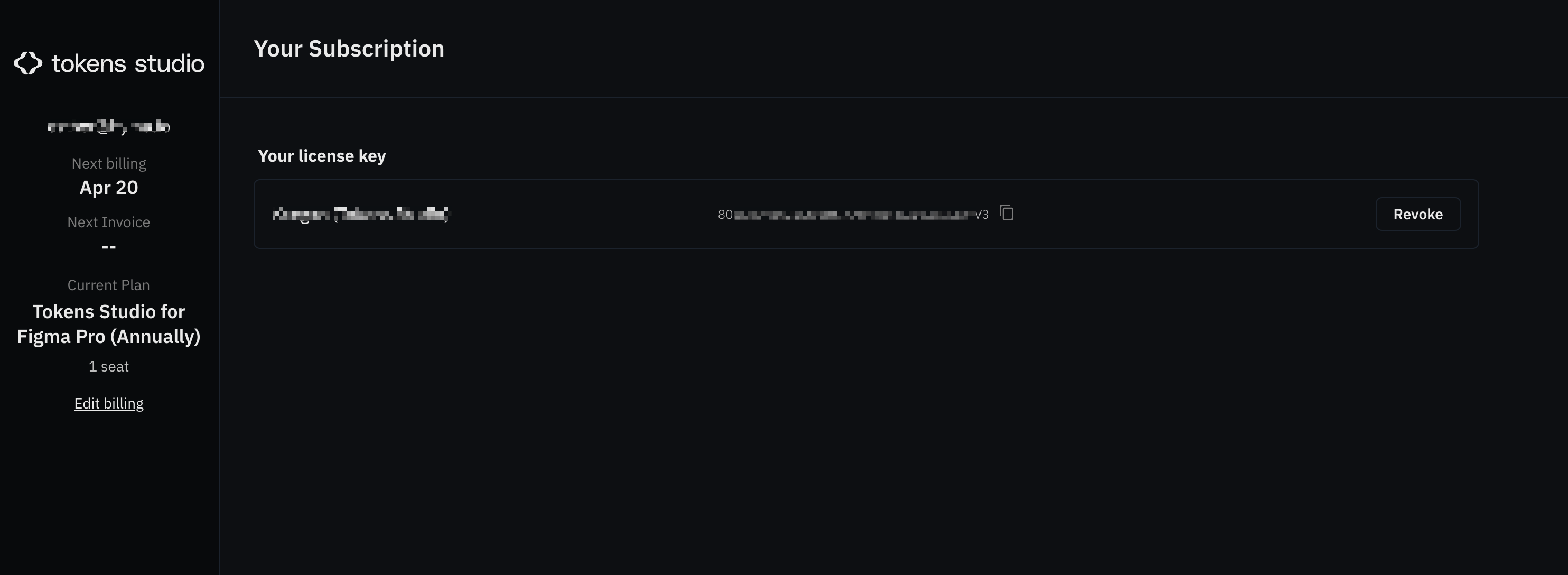
When you log into the Account Portal, you’ll see a dashboard that gives you a quick overview of your organization’s subscription.
What you’ll find on the dashboard
- Current Plan – shows which subscription tier your organization is on.
- Seats – how many seats are included in your plan, how many are currently in use, and how many are available.
- Billing Summary – your next billing date, payment method, and recent invoices.
- Organization Settings – options to manage team members, roles, and permissions.
Why it’s useful
The dashboard acts as your starting point. From here you can decide whether you need to:
- Add seats if your team is growing.
- Remove or reassign seats if people have left.
- Update payment information before the next billing cycle.
💡 Tip: Keep an eye on the seat usage panel. If all seats are filled, new team members won’t be able to access until you add more.